Troubleshooting guide
Zigbee2MQTT Device Not Responding After Pairing: A Step-by-Step Fix
Category: Smart Home
You’ve just paired a new Zigbee device with Zigbee2MQTT using your USB coordinator, but after a short time, it stops reporting its state—leaving you with a zigbee2mqtt device not responding issue.
Check the Device’s Link Quality and Last Seen
Open the Zigbee2MQTT frontend and locate your device. Check the ‘Link quality’ (LQI) and ‘Last seen’ values. If LQI is below 50 or ‘Last seen’ is more than a few minutes old, the device may have poor connectivity or have dropped off the network. Move the device closer to the coordinator or a router, then press the pairing button once to rejoin. If LQI improves and ‘Last seen’ updates, the issue is range-related.
Verify Coordinator Firmware and Network Interference
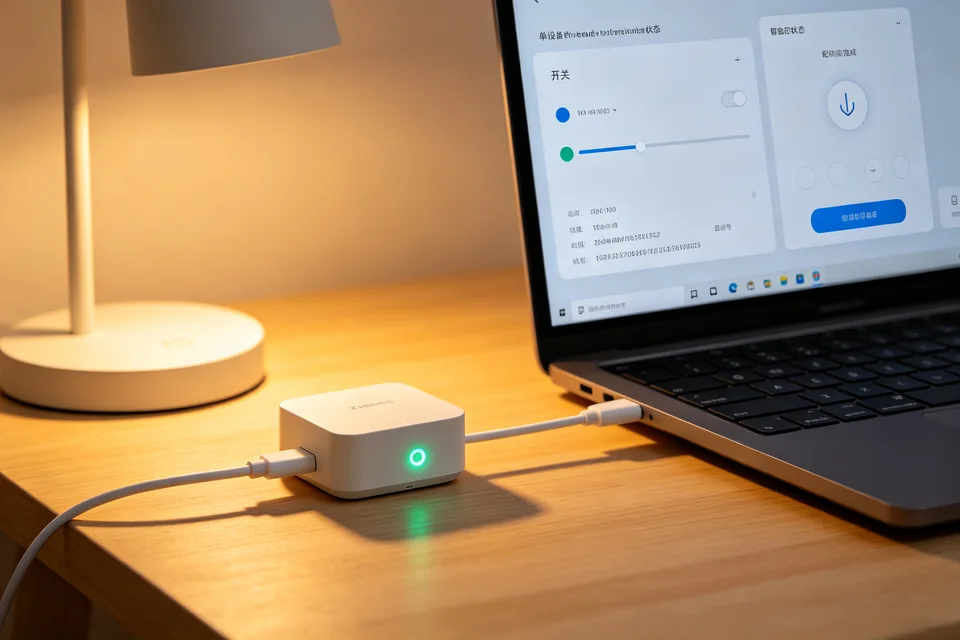
Ensure your coordinator’s firmware is up to date. Outdated firmware can cause unstable connections. Also, check for USB 3.0 interference: plug the coordinator into a USB 2.0 port or use an extension cable to move it away from the computer. After any change, restart Zigbee2MQTT and observe if the device stays responsive.
Perform a Verification Test
Trigger the device (e.g., press a button or open a sensor) and watch the Zigbee2MQTT logs. If you see state updates in the logs and the frontend reflects the change, the device is responding. If not, proceed to recovery.
Rollback and Recovery
If the device still stops responding, remove it from Zigbee2MQTT (via the frontend), reset the device to factory settings, and pair it again. This clears any corrupted network keys. If the problem persists, your coordinator or device may have a hardware fault. For personalized diagnosis,
By methodically checking link quality, interference, and firmware, you can often resolve the ‘pairs but stops responding’ issue without replacing hardware.